Image
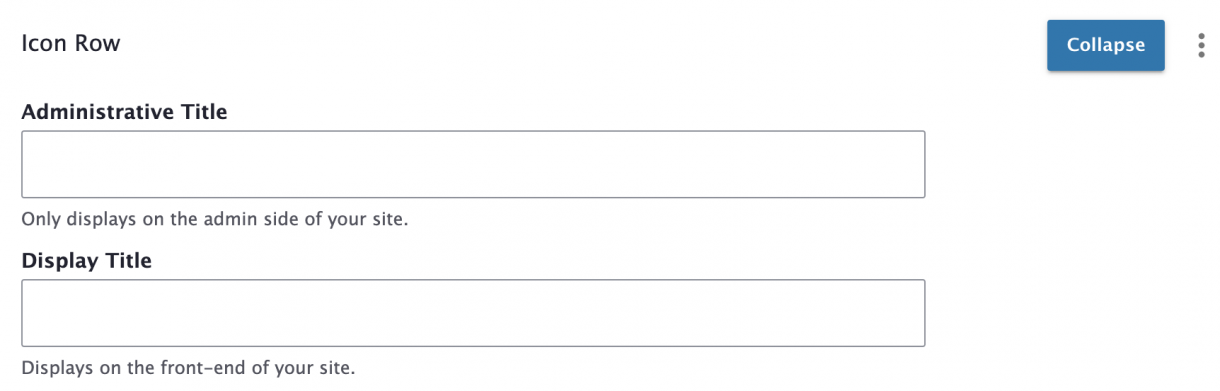
An Icon Row displays icons (or images) with an option for title, text, and link.
(* = required field)
1. When editing a Page or Story, click Add Content Block and choose Icon Row.
2. Enter Administrative Title and Display Title.
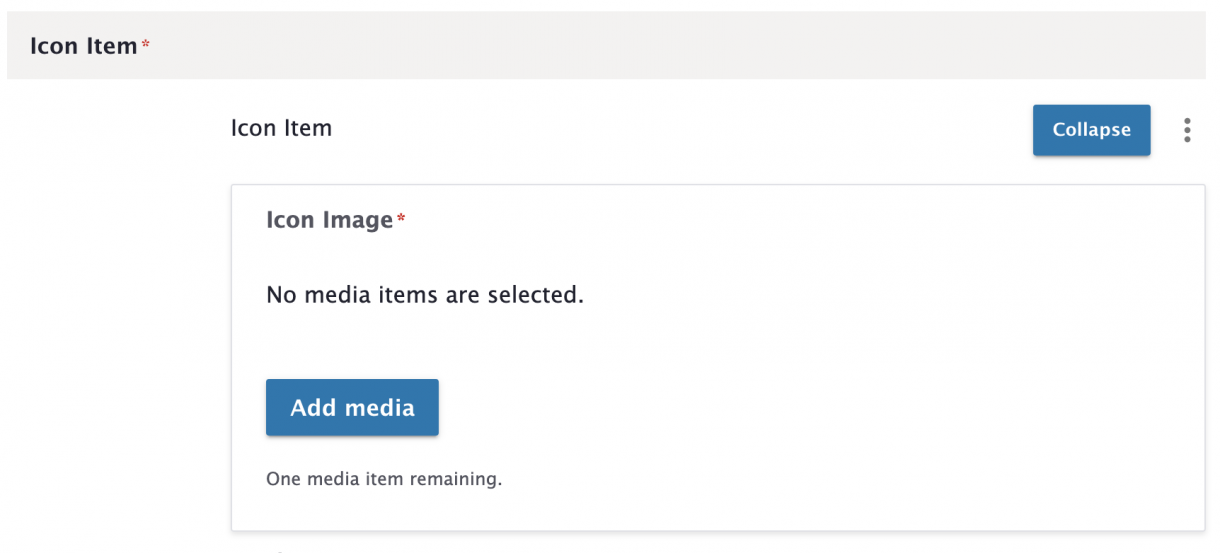
3. Add an Icon Image*.
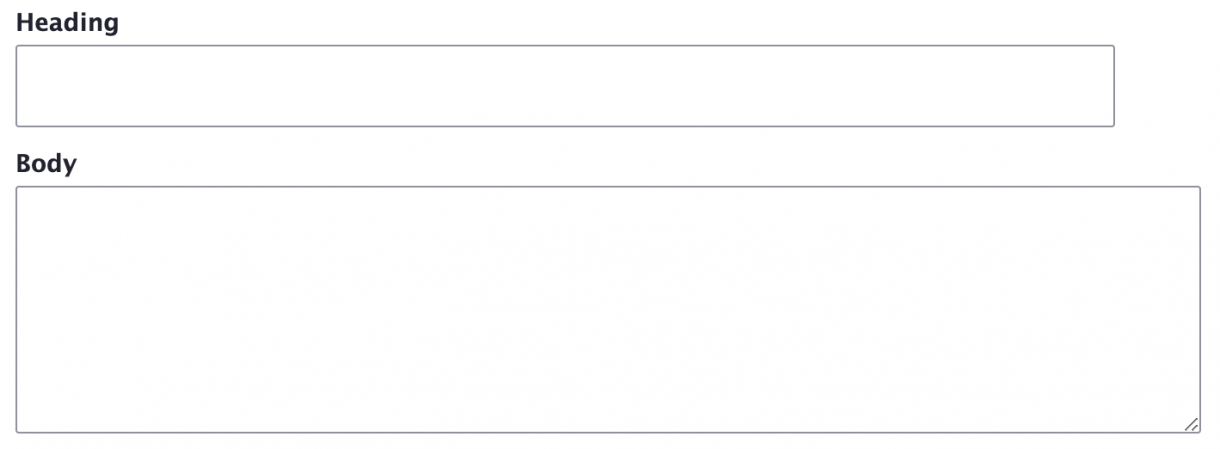
4. Add a Heading and Body text.
5. Enter a Link and click Add Icon Item as needed to add more icon items.
Note: The Link will make the icon image clickable.

6. Check the Published box – or uncheck it if you want to hide this block.
Below is an example of an Icon Row content block. Here are the elements that are being displayed:
Display Title for Icon Row
Icon Image
Heading for Icon Item
Body text for Icon Item
Link for Icon Item
Icon item body text.
Icon item body text.
Icon item body text.