When adding new content, once you click "Save", the content is published which means it is live on your site. Drupal defaults to content being published once it has been saved, but you can make content unpublished.

Unpublished content will not appear on your live site. You can access unpublished content on the administrative side of your site in the Content section, or by navigating to the content using the Preview pane. View the Find Existing Content page for information on finding unpublished content

Published Checkbox on Content Types

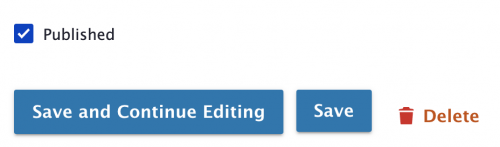
Each content type has a Published checkbox near the bottom of the content screen right above the Save button.

Image
Screenshot of Published checkbox
  • By default, the Published checkbox will be selected. When you save content, it will default to being published, which means it will be live on your site.
  • Deselect the Published checkbox to make content Unpublished, which will only be accessible on the administrative side of your site and will not appear on your live site.
    • Note: If you unpublish content, any menu links to that unpublished content will still appear in the menu for all site visitors as broken links. They are not automatically disabled or removed from menus; you will need to do that separately.

Menu Links to Unpublished Content

If you unpublish content, any menu links to that unpublished content will still appear in the menu for all site visitors as broken links. They are not automatically disabled or removed from menus; you will need to do that separately.

Published Checkbox on Content Blocks

Most Content Blocks have a Published checkbox, as well. By default, the Published checkbox will be selected.

  • As with Content Type items, published Content Blocks will appear on the live site for end users, while unpublished blocks are only available to site editors logged into your content site.
  • For Two- & Three-Column Rows, you can choose to unpublish either the entire row or individual blocks within it.
  • On an edit screen, unpublished blocks are marked with a light pink background and "crossed-out eye" icon.
Image
Screenshot of user interface with hidden content blocks